
Around five months ago, I stumbled upon Zen browser on Medium. I read a few articles, it sounded very promising, so I set it up for myself and decided to use it as my main browser from then on. But instead:
“I found my Zen experience by taking what I loved about Zen and making Safari deliver it.”
The main drawback was that Zen became super slow when handling many tabs. For working on my WordPress page, I switched back to Safari immediately as Zen was not able to handle the load. Using LLMs was fine in the beginning, but as the information and data increased Zen regularly broke — I found myself sitting in front of a blank screen and waiting. My CPU was hitting high numbers, and Zen was slowing my whole Mac down. Safari is native to macOS in a way that Zen simply isn’t yet. Beyond the performance issues, I was missing the promised Zen experience. I really liked some of the design choices, but initially I was expecting more than I got.
As I’m always looking to simplify things, I decided to go back to Safari. But with one little difference — I tweaked Safari a bit to fit some of the features I liked about Zen. By this pragmatic approach, I was able to speed up my Mac while at the same time not sacrificing the design thinking I had in Zen.
Here is what I liked — and still like about Zen — and a mini guide on how I set up Safari for retaining my Zen experience:
Essential tabs
Zen has that super cool feature that on top of your sidebar you can pin essential tabs. And to have this collection on top of your sidebar the websites become almost something like apps. It feels similar to navigating your phone.
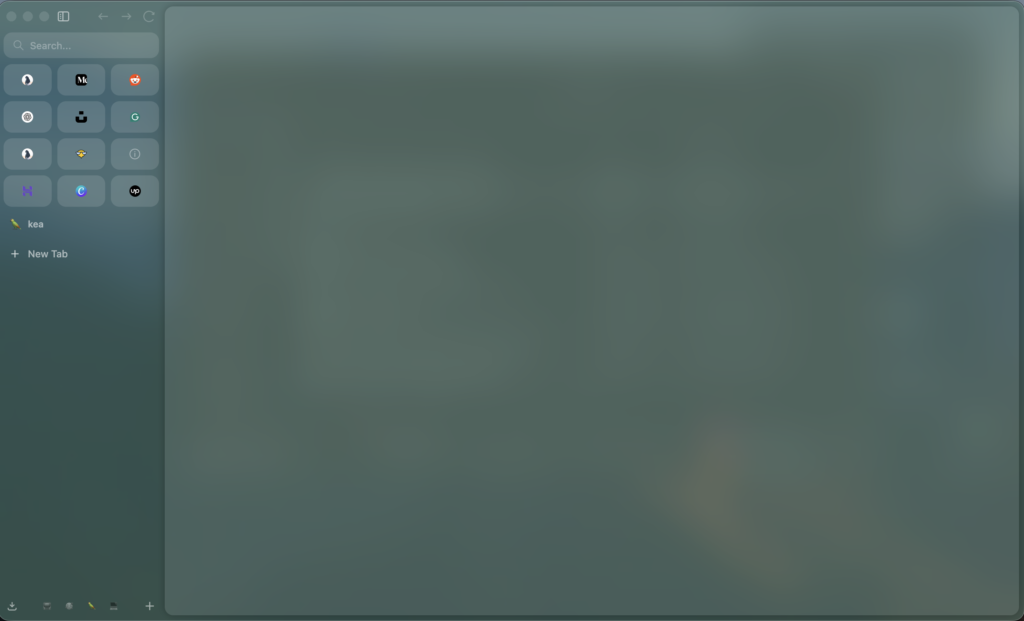
In Safari, you have the option to pin your tabs in the tab bar. It’s visually not as compelling as in Zen, but therefor the shortcut (CMD + number) for toggling in between the sites feels more intuitive for me. Officially, you can pin as many as tabs you want. But for now I have not gone further than 8. Depending on your habits and workflow it might look different for you.
Workspaces
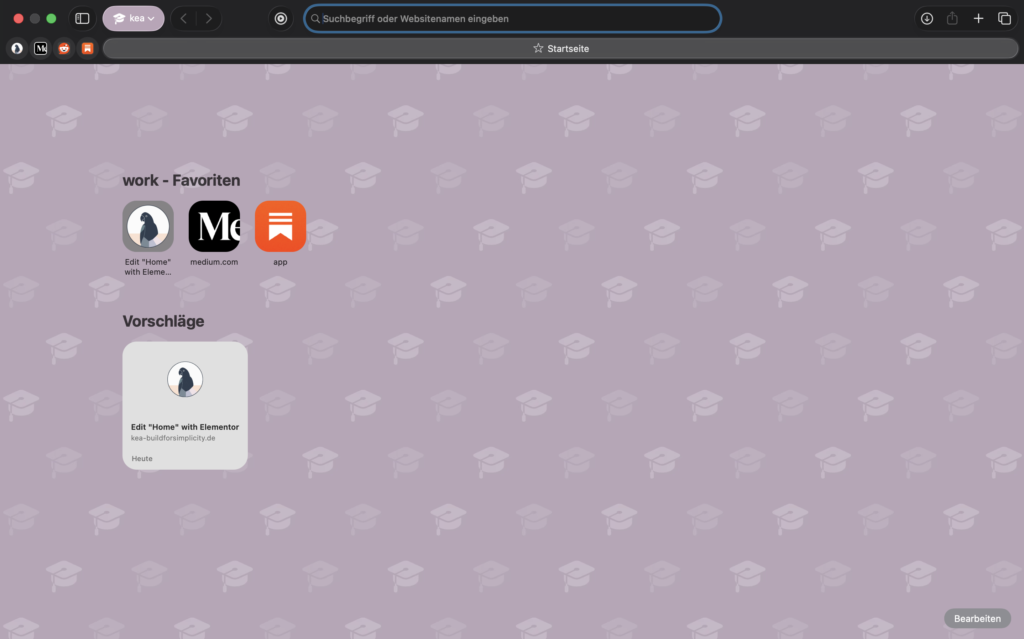
I liked the possibility of creating workspaces in Zen. They gave me the option to build something like folders, where I can then focus on a specific area. I had all the tabs and content for my writing and research in one workspace, another was for my personal interests, another for my media library, and the last one for my home network.
The term for workspaces in Safari is profiles. The main difference is that you have your workspaces in Zen at the bottom of the sidebar, and in Safari, they are at the top in your toolbar. In Zen, I always found it hard to click the icons, as they were pretty small, and the shortcut was not working well for me. In Safari, on the contrary, it felt super intuitive right from the start and easy to set up. Here is a quick guide on how to set up your profiles in Safari:
- Go to settings
- Select profiles
- Set up your profile: select name, icon, and color
Now your set and can switch in between your personal profiles.
Reaching full “Zen-potential” in Safari
This was the most important part to get my Zen experience into Safari.
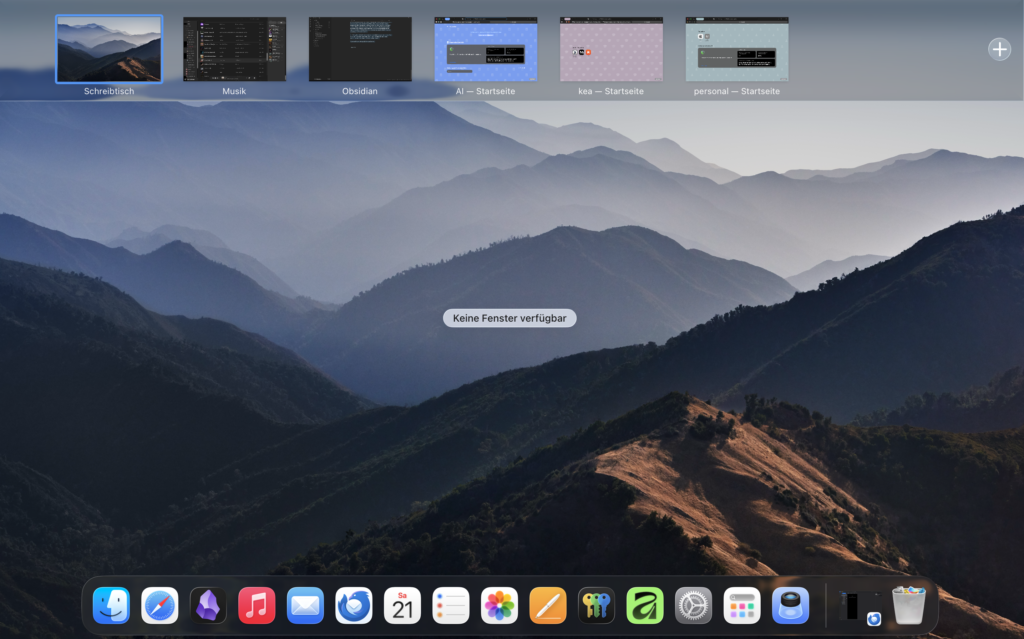
The first is to open each workspace in a new window. I drop each of the profiles I use in the mission control (swipe up with three fingers). Every profile gets its own space, as you see in the picture. By swiping up with three fingers I can switch between profiles super quickly. As this move is already part of my workflow, this adjustment felt intuitive right from the start.
The second part is full-screen mode. I love my work to be as free of distractions as possible. In Zen, the name for it is compact mode: it lets you see only the current page you are on and hides the rest — no sidebar, no window border. But the shortcut CMD + Ctrl + F never felt intuitive for me, so I had to manually click on the sidebar to switch between compact mode and the mode with the sidebar. Which never felt very satisfying.
In Safari, this is a whole other level. I almost exclusively use full-screen mode with Safari because it is so light to handle. The sidebar at the top is way more responsive in Safari. That’s why I don’t really miss the toolbar in full screen. And with swiping up — getting into mission control, I can switch between different windows and my profiles super quickly. There is almost no need for my toolbar. So full-screen mode in Safari hits a different “Zen-level”.
Closing thoughts
I love to try new tech. And I’m by no means disappointed with Zen browser. I just can’t compromise on speed. But now, with some little tweaks in Safari, I actually felt this “Zen” for the first time. I think this is what it is all about. Becoming aware of your needs, understanding how tools are built, and learning how to make it your own. In this case, combining the properties of one system with the capability of the other gave me the experience I was looking for — even surpassing it. And I’m more than happy with the result — my workflow now feels light, sharp, and simple. And my Mac thanks me as well for working much faster than before.
“Every tool is built around assumptions about how you should work. The skill isn’t finding the perfect tool — it’s learning to read those assumptions and bend them to fit your actual needs.”
I hope you find something useful for yourself in here.